Messages & notifications
The Message Center (sidebar → Messages, or the bell in the top bar) is where your conversations with the Prep Roadrunner team and your in-app alerts live together.
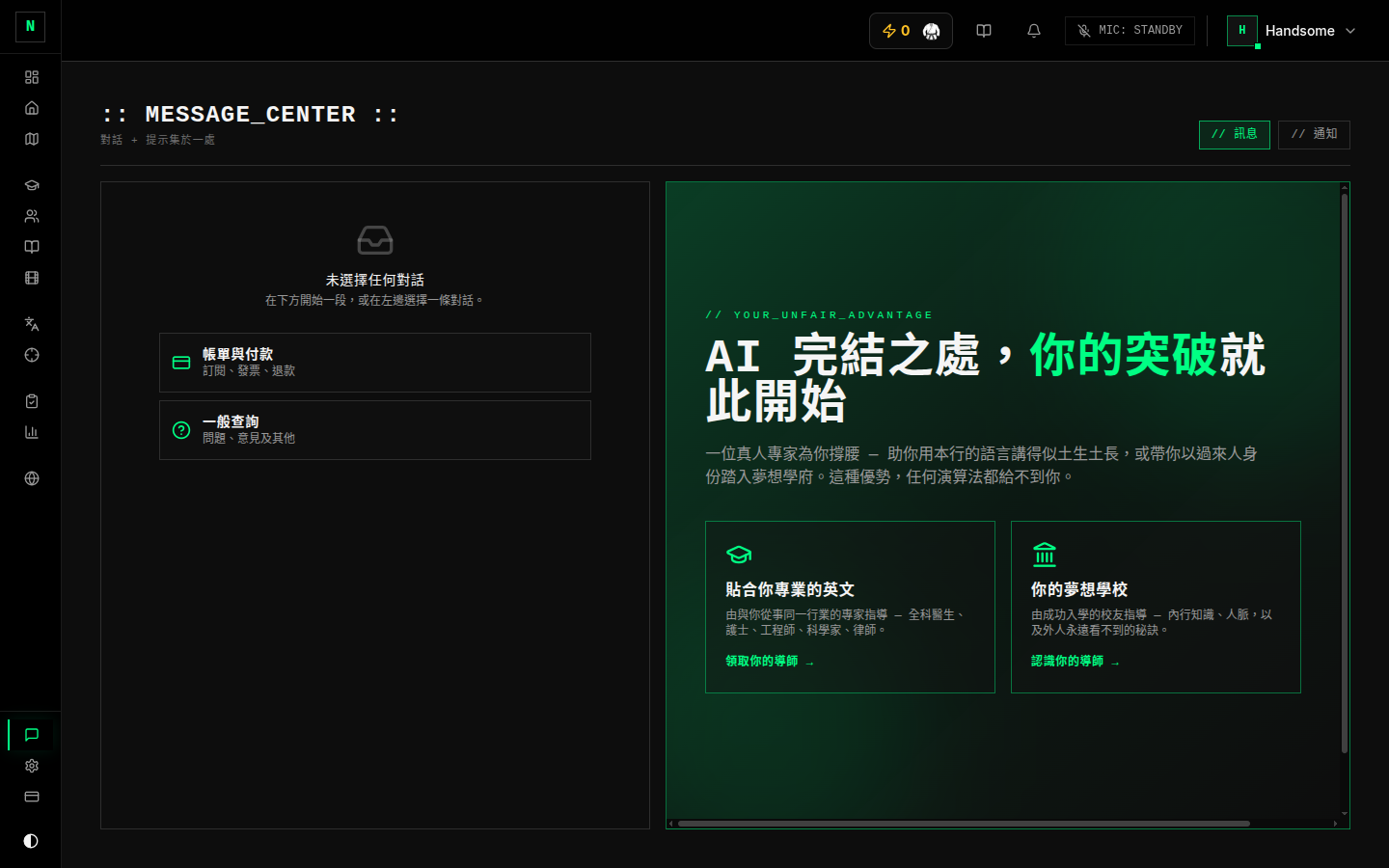
Two tabs
- Messages — your conversation threads with the team (support, billing questions, tutor requests). Each thread keeps the full back-and-forth.
- Notifications — system alerts: achievements, reminders, progress updates, exam-review notices, and replies. The bell in the top bar shows a count of unread ones.
Starting a conversation
- Open Messages and choose New message.
- Pick a topic (for example Billing, General help, or a tutor request).
- Write your message and send. The team can see and reply to your thread; you'll get a notification when they do.
Good to know
- Notifications vs. Messages: notifications are one-way alerts to you; messages are two-way conversations. Both are in this one place.
- Clicking a notification usually takes you straight to whatever it's about (a reviewed exam, a tutor update, etc.).
- For something wrong with a specific exam question, use the report issue button inside the exam instead — it sends the right context automatically.
tip
If you're not getting a reply, check you're looking in the Messages tab (not Notifications) — replies land there, and the thread shows whether it's awaiting a reply or has a new one.