Signing in
Prep Roadrunner uses Google sign-in only — there's no separate username or password to create or remember. Signing in with Google for the first time automatically creates your account.
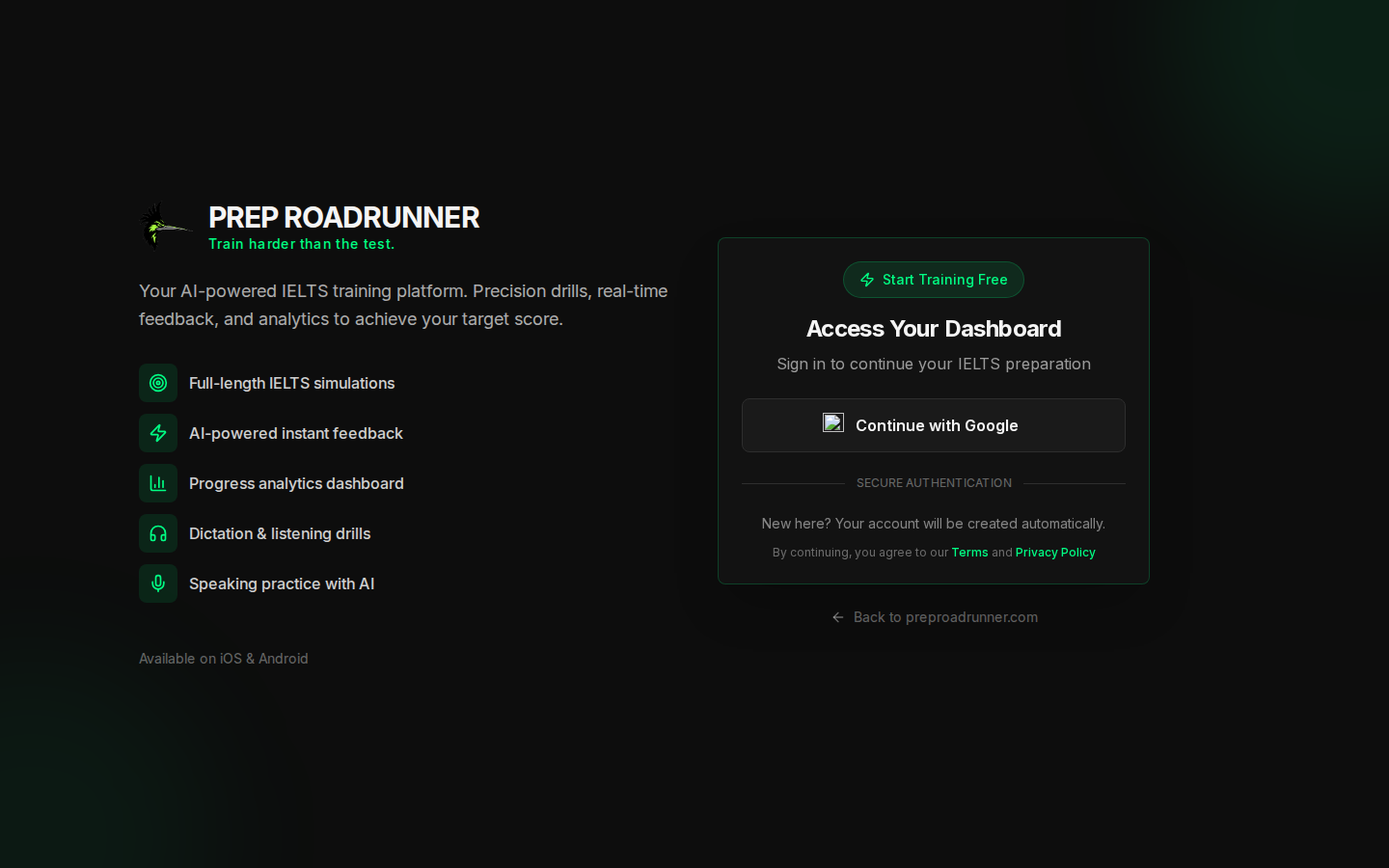 The sign-in screen.
How to sign in
- Go to portal.preproadrunner.com. If you're not signed in, you'll land on the sign-in screen.
- Click
Continue with Google. - Choose your Google account (and approve access the first time).
- You'll be redirected back into the app:
- First time? You go straight to onboarding to set up your study plan.
- Returning? You go to your Dashboard.
That's it — no email verification step, no password.
Good to know
- One account = one Google login. Always sign in with the same Google account so your progress, exams, and vocabulary stay together. Signing in with a different Google account creates a separate account with its own (empty) progress.
- Signing out is in the user menu at the top-right of the app (your avatar → Sign Out). See Finding your way around.
- Sessions expire after a period of inactivity; if that happens you'll be asked to sign in again. Your work is saved on the server, so you won't lose progress.
Trouble getting in?
If sign-in fails with an error, the most common causes are:
- A browser blocking third-party cookies or pop-ups for the Google login — allow them for
preproadrunner.com. - Being signed into multiple Google accounts — pick the right one on the account-chooser screen.
If it still won't work, reach out from the Messages center once you're in, or email support@preproadrunner.com.