Results & review
After any exam you get a results page; from there you can open a detailed review. All your past exams also live in one place — Results (sidebar → Results, also linked as Exam History).
The results page
What you see depends on the skill:
- Listening & Reading (scored instantly): your band score, a breakdown by part/passage and by question type, and a button to review every question.
- Writing & Speaking (AI-marked): while marking runs, the page shows a "marking in progress" state and updates itself when ready — usually a few minutes, occasionally longer at busy times. You can safely leave and come back. When it's done you get your overall band, the four criteria for that skill, and written strengths / areas to improve.
Writing and Speaking marking runs in the background and recovers itself if something goes wrong — you don't need to re-submit. If a result still hasn't appeared after a while, check back later or contact support from Messages. (A result that genuinely failed will say so honestly rather than spin forever.)
The review
The review is where the learning happens.
 Reviewing a Reading exam.
- Listening / Reading — go through each question with your answer next to the correct one, grouped by part/passage. For Reading, the passage sits alongside (with your highlights preserved); for Listening you can re-listen.
- Writing — see your essays with the examiner's feedback.
- Speaking — read the full transcript and play back your recording, turn by turn, alongside the scores.
Your exam history
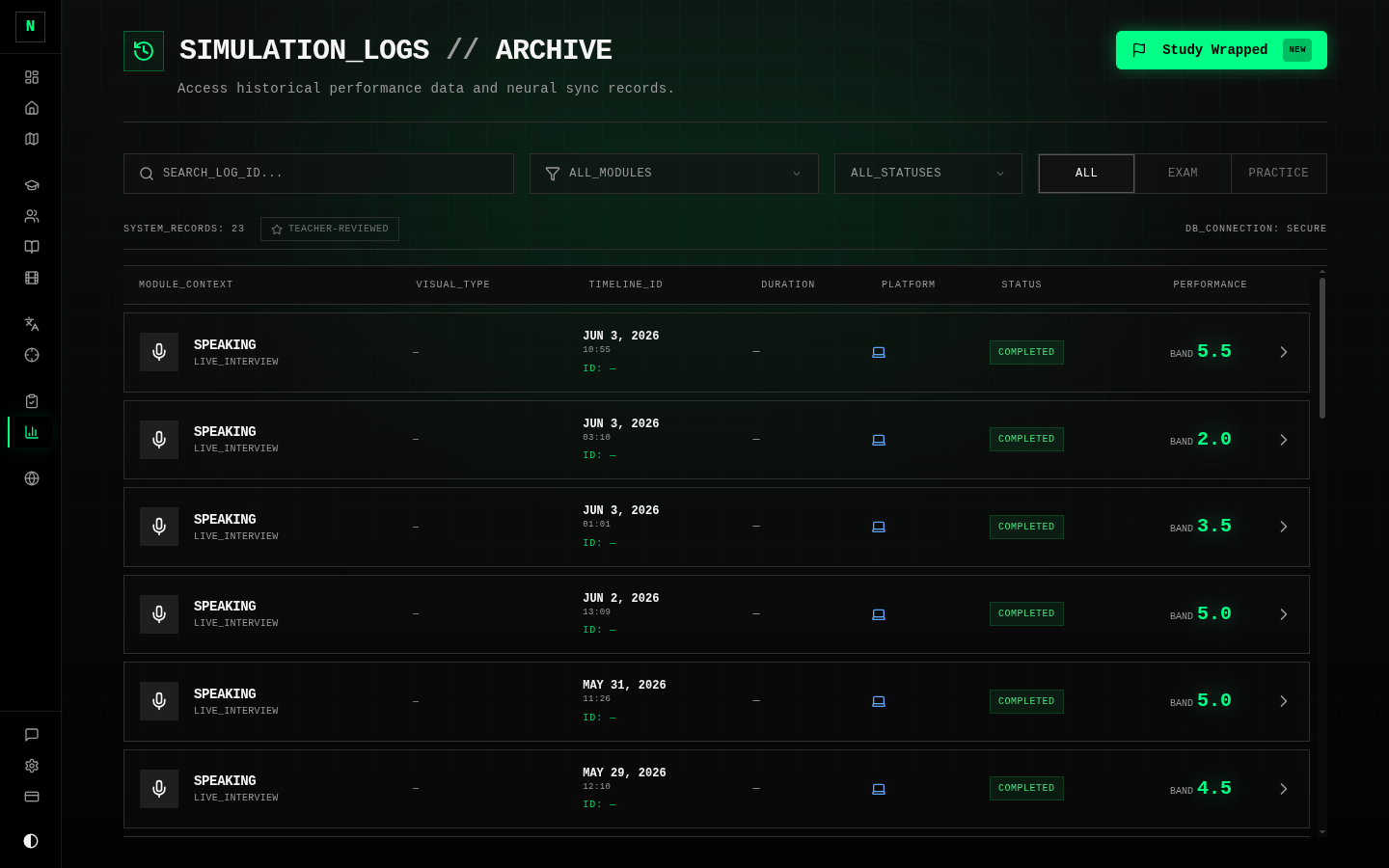 All your past exams in one list.
The Results screen lists every exam you've taken — most recent first — with its type, track, date, status, and score. From each row you can review it or, if it's still marking, check its status. You can filter the list to find a particular skill or track.
Request a human review
For Writing and Speaking, the AI mark isn't your only option — you can ask a real teacher to review a submitted exam and give you human feedback. Look for the expert / teacher review option on the results or review screen. When a teacher has reviewed your work, you'll be notified (a highlight appears on your Dashboard, and you can filter your Results to reviewed exams).
For deeper, ongoing help — not just one review — see Coaching.
Sharing your result
You can generate a shareable card of a result to post or send to someone. It opens as a public page (no login needed for whoever you share it with). See Wrapped & sharing.
Tips
- Always do the review, not just the score. The band tells you where you are; the review tells you why — and that's what moves it.
- For Writing/Speaking, read the criteria feedback closely: it maps directly to how the real test is marked, so it tells you which lever to pull next.